December 27th, 2010
admin
The tables built with our Tables addon by default have no custom styling. We went this way because we want to allow the site builders and theme developers customize the table layout via css making it fit the overall website design. Here is how a simple table looks by default:
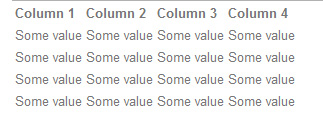
No borders, no background, etc. But all of that can be added via CSS styling.
Read more…
Some people might have noticed that Google sometimes indexes websites’ directories even though that was not supposed to be shared. For example, if you install concrete5, the /themes, /packages, /concrete and other directories might get indexed by Google. Also, some malicious people can open that directories and view the list of its contents, for example, they can see what packages are installed on your website if they type the URL in browser like yourdomain.com/packages/
Read more…
Just a quick tip for concrete5 users: When you are moving blocks on the page (from area to area, or just arranging blocks inside one area), try to point your mouse closer to middle of the block (vertically). This way it will be easier to target destination space, than if you take the block close to the bottom or top border.
Take a look at the picture.
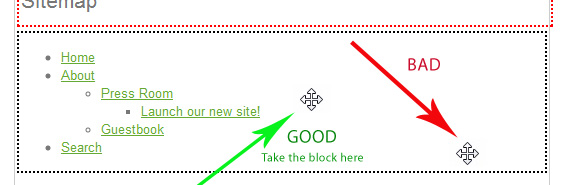
This behavior possibly depends on which browser you use, I don’t know, but taking block at the middle works in any browser perfectly. I mean modern browsers and not IE 6 🙂
In fact it is very easy to copy pages in concrete5, but many people (especially those who use concrete5 for the first time) don’t know how this can be done.
Read more…
Maintenance mode disables website frontent for usual visitors, however admin backend is available for website owner. Enabling maintenance mode is recommended on high-traffic websites while doing backups and other maintenance procedures.
Read more…
Some new concrete5 users get confused when they cannot find a way to add table to a page at their concrete5 website. However in fact there are several ways to do that. I will describe 4 ways to add table on the page with concrete5 cms… Read more…
February 13th, 2010
admin
Some concrete5 themes allow to customize background color from admin dashboard. Try this:
1. Sign in to concrete5 dashboard.
2. Go to ‘Pages and Themes‘ section.
3. Click ‘Customize‘ button for a theme you want to edit.
4. If the theme supports the feature, you’ll see ‘Background‘ in theme customization options. You can choose any color using color picker and preview it almost immediatelly. Click ‘Save’ to apply the change.
In previous article we described how to replace sitename with logo by html editing. That was for older versions of concrete5 cms. In the latest cms you can do it without any html knowledge. Here is step-by-step instruction:
1. Sign in to admin dashboard.
2. Go to ‘Scrapbook‘ section.
3. Open ‘Global Scrapbook‘ there.
4. There will be one block there – Content: “My_Site_Name”.
You can go 2 ways: you can either edit this content block and add the picture via ‘Add image’ button, or you can do the following:
1) delete the content block (My_Site_Name);
2) Add new block of ‘Image’ type (it will allow you to choose/upload the logo and set logo dimensions you want);
3) after you add the image block, it will be assigned a default block name like ‘Global Scrapbook 34’. You should click ‘Rename’ button and change the block name to My_Site_Name. Click ‘Save’ to finish the renaming procedure;
4) go to the site frontend and check if the logo is used instead of sitename. If not, that might be a problem with concrete5 theme (currently only cordobo green park theme supports it on our website, but we’ll update the other concrete5 themes soon). You’ll need to edit html code in this case, see this article then.
If you accidentally clicked on the "Remove" button for "Generate Sitemap File" job and cannot restore the job. Don’t worry. It can be easily done in the following way:
1. Move (not copy) generate_sitemap.php file from /concrete/jobs/ to /jobs/
2. Go to Dashboard, then open Maintenance section.
3. You should see the Generate Sitemap File job and Install button next to it. Click the Install button.
It was easy, wasn’t it?
There could be a situation when you might need to copy some content from one concrete5-based website to another. You can try doing "Edit page" -> "Edit block", then select all and paste on the new website. It will work if you don’t have text formatting in the block, otherwise it might been copied with some format losses.
Read more…