This update is final for the 5.4.x branch. We are almost ready with the 5.5.x update, but it’s not published yet.
So, here are the things fixed in Tables 2.2.2:
BUGS:
– on some MySQL servers there was an error thrown during the addon installation. It said: "1101: BLOB/TEXT column ‘defaultValue’ can’t have a default value" It should be fixed.
-when adding a file/image there was a problem to select a file which is not on the first page of the file search results. Fixed.
FEATURES:
It is now possible to Copy (Clone) a table: you can choose either to copy only structure, or both structure and data.
The basic ‘view.php’ template of the ‘Table’ block now has some code that allows to add custom classes for each column:
just change this code (column classes are disabled by default):
// change to true if you need column classes
$add_column_classes = false;
// column class prefix
$column_class_prefix = 'swp-table-column-';
For example, in this way:
// change to true if you need column classes
$add_column_classes = true;
// column class prefix
$column_class_prefix = 'my-prefix-';
And each cell will have a class designating the column number (‘my-prefix-1’), which can be used in CSS for styling.
We are testing the latest concrete5 release which is concrete 5.5.0. It has lots of improvements and changes in user interface design. In software development significant changes always come with bugs. That doesn’t mean that concrete5 developers are not professional. They are professionals. It is just a reality of the programming world: there is no developer who never has any bug in his work. It just takes some time to find out the bugs and resolve the issues.
We recommend not to use concrete 5.5.0 for live site development. Just wait until the 5.5 branch becomes stable. The latest stable version for now is concrete 5.4.2.2.
Some of known bugs of concrete 5.5.0 that will be fixed in 5.5.1:
- you can’t update addons locally without connecting to concrete5 marketplace
- toolbar hides the top part of the theme
We are inspecting our addons at concrete5 marketplace. We try to make them all 5.5-ready as soon as possible.
The “SEO: 301 Redirects” addon has been published at concrete5 marketplace.
This addon is intended to help website owners move from their old website platform to concrete5 and not to lose their search engines and referrers traffic – you can setup redirects to move users from the old site URLs to the new ones.
For example: if you had URLs like /products.html you can setup the following redirect:
/products.html -> /products/
and both real users and search engines robots will be automatically forwarded to the new address.
The addon allows you to either specify a certain concrete5 page or a static URL. If you point a redirect to a concrete5 page by choosing a sitemap node, you don’t have to worry about that redirect any longer: even if you move the page to another parent node, the redirect will remain functional.
You can also setup redirects for files. That will allow you to keep all your files organized in one place – concrete5 File Manager. If you have any questions about the “SEO: 301 Redirects” addon, please contact our support department.
concrete5 allows to set custom page type icons instead of the standard ones easily.
Step 1. Prepare images for each page type you are going to have on your website.
Step 2. Create a file set in the file manager (Dashboard -> File Manager -> Sets). Name it “Page Type Icons”
Step 3. Upload the images to file manager and add them to “Page Type Icons” set.
Step 4. Go to page types management page (Dashboard -> Pages and Themes -> Page Types). Open the "Settings" page for each page type, set appropriate image and update.
That’s all.
We’ve fixed a couple of bugs in the Tables addon:
– the "File" field didn’t work properly if there was 2 or more fields of the "File" type;
– the field type selector remained disabled in some browsers after the field type change.
September 18th, 2011
admin
We’ve just published new version of the Downloads List addon. There is one change between 1.2 and 1.3 – the newest version allows to limit the number of downloads displayed on the page (and you can enable pagination if there are more items).
You can see an example on our demo: http://demo.smartwebprojects.net/downloads-list/
The Downloads List addon at concrete5 marketplace: http://www.concrete5.org/marketplace/addons/downloads-list/
This short hint is for people who want to customize the “Table” block output (part of the “Tables” addon)
You can edit the block template (or create your new custom template) and put this code:
echo $table["tableName"];
By default, the block template is ‘/packages/swp_tables/blocks/swp_table/view.php’
Read more…
Here is a quick note for those who want to change the date format output of our Downloads List addon.
You can edit the block template (by default it can be found here: ‘/packages/swp_downloads_list/blocks/swp_downloads_list/view.php’)
Find this line:
echo $fv->getDateAdded("user");
and change in this way:
echo date("d/m/y", strtotime($fv->getDateAdded("user")));
You can change “d/m/y” to any other date/time format you want. It is php date format string, so you may use this doc for reference: http://www.php.net/date
Or you can just ask us for help.
Mostly this is a bugfix release, it covers several bugs with complex field types like image, file and rich text editor.
Here are some details on the update:
Bugs fixed:
– In Tables 2.1.1 if you try to edit the image or file field, the "Choose file" option didn’t work in file manager, you had to reset the field and select the file again. Fixed;
– in earlier versions, if the table had fields of image/file field type and rich text content, the rich text editor’s buttons to choose file/image got broken if you previously chose a file/image for file/image field. Fixed;
– the ‘Insert link to page’ button didn’t work properly in rich text editor. Fixed;
– earlier, if you add a column of some non-default field type to a table with some data, the fields of that column in existing rows would have a default (text field) field type. Fixed;
– the scrapbook block field type could throw an error if you try to choose a block and the scrapbook had any content block with some links, images or files in the content. Fixed;
Minor improvements:
– If you turn the simple edit field into rich text editor, the content of the field shouldn’t be lost now (that works only for this conversion);
– if you import a csv file, the data is being imported as rich text content field if it has any HTML tags;
– the rich text content field type now stores the data in database almost exactly like the concrete5 default "Content" block does. It means that you will not have to edit the links any time you change the page handle.
The Tables addon at concrete5 marketplace: http://www.concrete5.org/marketplace/addons/tables/
December 27th, 2010
admin
The tables built with our Tables addon by default have no custom styling. We went this way because we want to allow the site builders and theme developers customize the table layout via css making it fit the overall website design. Here is how a simple table looks by default:
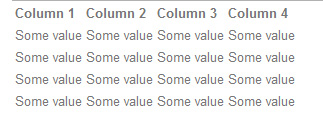
No borders, no background, etc. But all of that can be added via CSS styling.
Read more…